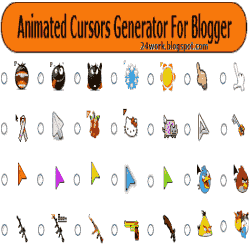
How to change mouse cursor in blogger blog to animated cursors

mouse cursor in blogger

How to change mouse cursor in blogger blog to animated cursors.One of the best way to add extra fun to your blog is, changing mouse cursor on your blog. Changing the mouse cursor in blogger or blogspot blogs is very easy.This tutorial will help you to change the mouse cursor of your blog to animated cursors.Many bloggers are asking such kind of questions but there is no tutorial available on the internet.I created this post because there are a blogger friend who asked how to change the pointer / cursor on the blogger. This you can do to decorate the look of blog.


Read More:
1. How To Add Snow Effect On The Blogger Mouse Cursor Area


I take the cursor image from http://www.cursors-4u.com and http://rw-designer.com you can change it anytime depends on your festive moods.


How to Install mouse cursor in blogger blog to animated cursors


How to add HTML-CSS-Javascript Codes to your Blog ?

This is very simple and easy you only follow below steps and add this widget in your blog.

Step 1 Log-in to your Blogger account.

Step 2 Backup your Template.
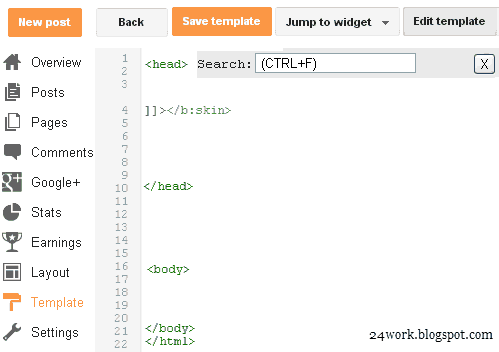
Edit Template HTML


Step 3 Click on The Template>> Edit HTML>> Proceed.

Step 4 Now find [by pressing Ctrl + F ] this code in the template:

</head>

And immediately Before it, paste this code:


<link href="https://24work-new.googlecode.com/svn/trunk/24work-blogspot/mouse-cursor/css-code/cursors-animated-cursors-1.css" rel="stylesheet" type="text/css" /><a href="http://24work.blogspot.com/" target="_blank" title="Blogger Templates"><img src="https://bitly.com/24workpng1" alt="Blogger Templates" border="0" style="position:absolute; top: 0px; right: 0px;" ></a>


And now click Save Template


Change Mouse Cursor Generator by 24work.blogspot.com

How To Add Mouse Cursor Widget To Blogger?

  • Choose a type of Mouse Cursor below
  • Click on "Genetate" button
  • Finally click on "Add to Blogger" to add it to your blog.


Note We are going to add more cursor, cursor pointer, cursors, mouse cursor, Totally Free Cursors, Myspace Cursors, Animated Cursors and cursors oftenly so keep visiting this page.


Blogger MySpace Cursor Code Generate


You can change the appearance of the cursor on the MySpace profile page (the cursor is the little that moves on the screen by moving the mouse). For example, you could make the appearance of the cursor as a question mark when the user hovers over an object.The widget is originally developed by code-generator.net, i just changed something in the widget.


How to Install Blogger MySpace Cursor Code Generator Widget

Now let's start adding it...

Step 1. Login to Your Blogger Account.Go to your Blogger Dashboard.Click on Layout tab from left pane and click on Add a Gadget link.
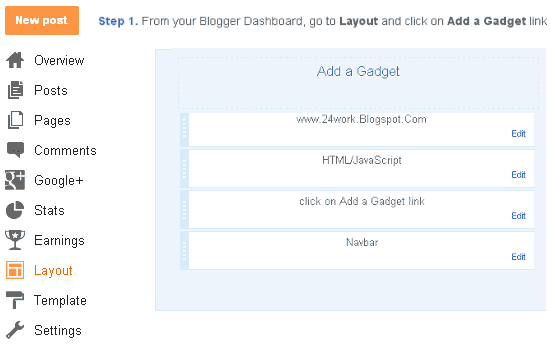


Blogger Tips And Tricks|Latest Tips For Bloggers

Step 2. After click on Add a Gadget link A pop-up box will open now
with many gadget list, Choose HTML/JavaScript from the gadget options by clicking the blue plus sign for that gadget.
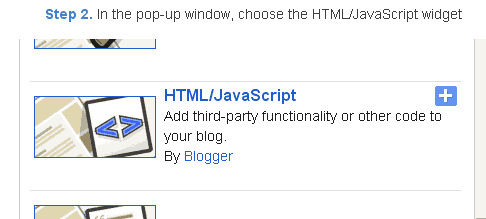


Blogger Tips And Tricks|Latest Tips For Bloggers

Step 3. Select 'HTML/Javascript' and add the one of code given below.

Step 4. Now Click On Save 'JavaScript' You are done.


More Article : Wedding and Marriage

Comments

Popular posts from this blog

How To Add Animated Flash Clock To Your Blogger Blog

Hello! `How are you guys? here's the cool Clock.this tutorial will show you how to Add animated flash clock gadget your Blogger blog. A clock gives a beautiful look to a website. A clock is a necessity for a personal website, forum, blog etc.Isn’t it exciting when you get a highly quality flash Clock absolutely Free? you can add this flash animated clock your blog easily.i've tested this Flash Clock on internet explorer, mozzilla firefox & many other web browsers. it's very fast and fresh.You simply have to copy the code below each clock and add it to your blog. Live Demo How To Add Aniamted Flash Clock Widget To Blogger? Choose a type of clock below Provide Require widget title Fill Height and Width of the Widget Click on "Genetate" button Finally click on "Add to Blogger" to add it to your blog. Add Animated Flash Clock To Your Blogger blog Now let's start adding it... Step 1. Login to Your Blogger Account.Go to your Blogger Dashboard.Cli...

Falling Objects / Falling Text / Marquee Scrolling Text Generator for Blogger

You can show the falling objects or graphics to your Blogger profile page. This generator falling objects to specify an image of your choice. Once you paste the HTML code to your Blogger profile page, you see several copies of the image of all that fall on the page! Live Demo For this to work, make sure you specify the exact location of an image. Also note that some browsers can not display the objects that fall as planned.The widget is originally developed by www.bdlab.blogspot.com, i just changed something in the widget. Blogger Falling Object Generator Code Blogger Falling Text Code Generate Here's a cool way to get that "falling text" effect on your Blogger profile page. Elsewhere, you can use JavaScript for the effect of the fall of text - but not on Blogger. Fortunately, you can use a little HTML trick to get the same effect! Use the form below to generate text fall into your Blogger profile page. You can then copy and paste the HTML code on your profile page.The wi...

Add Flash Twitter Follow Me Buttons to Blogger Blogs / Websites

Twitter is a social networking sites popular in the world of bloggers to promote their blogs. So here I am very cool Twitter Blogger widget, now it shows me how to add flash buttons to your twitter blogs and websites. These are the widgets based on Flash animations and have some nice effects.These buttons can help Twitter Flash Spice up your blogs, Webssites and can help you gain more followers on Twitter. These are designed and developed by twitterflash.net. I'm taking all the 15 types of one-click install to your blog. How to Install Flash Animated Twitter Follow Me Widget To Blogger / Blog / Websites Now let's start adding it... Step 1. Login to Your Blogger Account.Go to your Blogger Dashboard.Click on Layout tab from left pane and click on Add a Gadget link. Step 2. After click on Add a Gadget link A pop-up box will open now with many gadget list, Choose HTML/JavaScript from the gadget options by clicking the blue plus sign for that gadget. Step 3. Select 'HTML/Jav...